

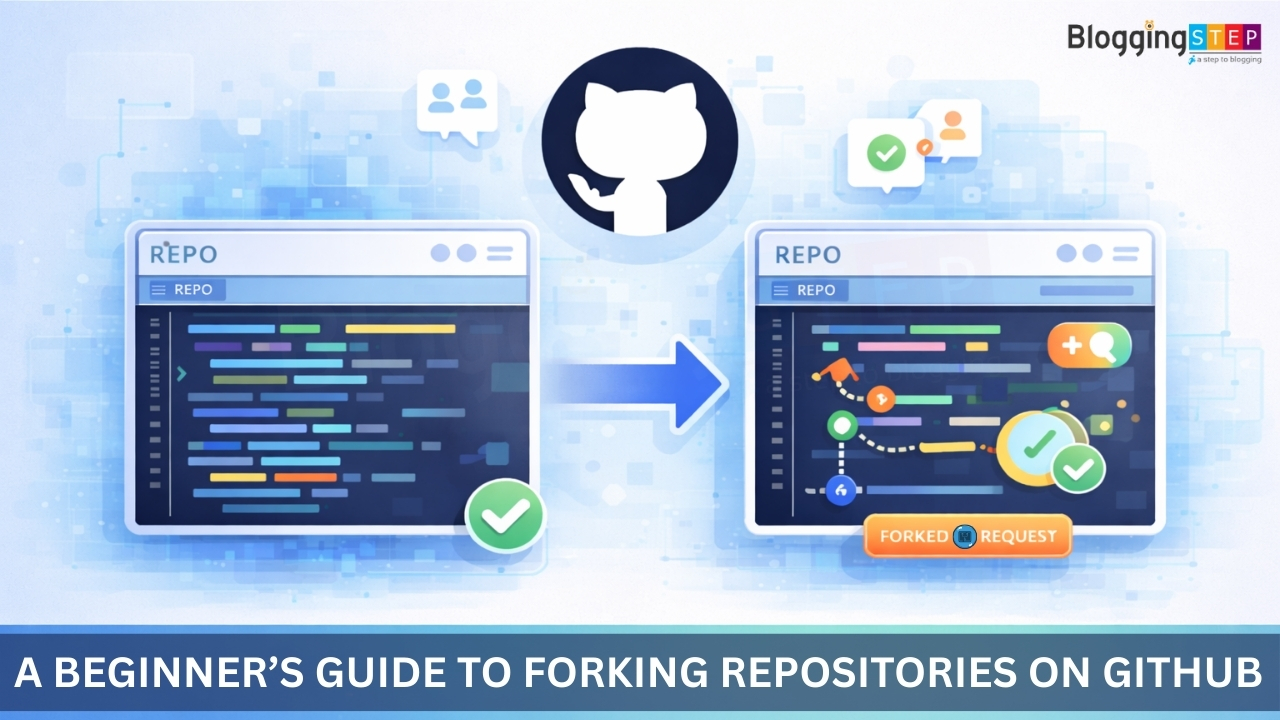
In GitHub, a fork is essentially a personal copy of someone else’s repository. It allows you to freely make changes without affecting the original project. Forking is commonly used in open-source projects where you might want to contribute to a project, but without directly modifying the original repository.
Table of Contents
Here’s how it works:
- Forking: When you fork a repository, you create a copy of it under your own GitHub account. This copy is independent of the original repository, but it still keeps a link to the original repo.
- Make Changes: You can modify, add, or delete files in your forked repo as much as you like, without affecting the original repository.
- Pull Request (PR): If you want your changes to be considered for inclusion in the original repository, you can submit a pull request. This lets the owner of the original repository review your changes and decide whether to merge them into the main project.
Key Benefits:
- Safe Experimentation: You can try out changes without the risk of messing up the original project.
- Contributions: Forking is the standard way to contribute to a project, especially in open-source. You fork the project, make your changes, and then submit a pull request.
- Collaboration: It helps multiple people collaborate on the same project, even if they’re not directly involved with the original repository.
To sum it up, forking gives you a sandbox to play with code, and the pull request is how you ask to bring those changes back into the main project.
Before you start forking repositories, it’s essential to understand how Git works. In my Beginner’s Guide to Git & GitHub for Version Control, I cover the basic Git commands and workflow that will help you get started. Make sure you’re familiar with committing, pushing, and pulling changes before forking repositories.
Step-by-Step Guide to Forking a Repository and Creating a Pull Request on GitHub
In this guide, I’ll walk you through the process of forking a GitHub repository and creating a pull request. Let’s use my WordPress plugin example to demonstrate the process, step-by-step.
1. Fork a Repository
Let’s assume you want to contribute to an open-source project hosted on GitHub. Here’s what you need to do:
- Go to GitHub and find the repository you want to fork. For example, let’s say you want to contribute to this project:
My-GitHub-Repo. - Click on the “Fork” Button: On the upper-right of the repository page, you’ll see a “Fork” button. Clicking this will create a copy of the repository under your own GitHub account.
- Choose Your GitHub Account: If you belong to multiple organizations, GitHub will ask you where you want to fork the repository (your personal account or a specific organization). Select your account.
- After forking, GitHub will redirect you to the newly created fork under your account.
2. Clone the Forked Repository
Once you’ve forked the repository, you’ll need to clone it to your local machine to start making changes:
- Go to Your Forked Repository: Navigate to your GitHub profile and open the forked repository.
- Clone It Locally: On the repository page, click the green “Code” button and copy the repository’s URL (either HTTPS or SSH). Then, open a terminal or command prompt and run:
git clone https://github.com/YOUR_USERNAME/My-GitHub-Repo.gitCode language: PHP (php) Note: Replace YOUR_USERNAME with your actual GitHub username.
- Navigate to the Project Directory:
cd My-GitHub-Repo3. Make Changes to the Code
Now that you’ve cloned the repository, you can start making changes to the WordPress plugin itself. Let’s assume you want to modify the plugin to customize the footer message or add new functionality.
Modify the Footer Message
- Open the Plugin Code: In the
hello-world-plugin.phpfile, you’ll find the following function that adds the footer message:
function hello_world_footer_message() {
    echo '<p>Hello, World! Welcome to my WordPress site.</p>';
}Code language: PHP (php)- Change the Message: You can modify the message to something more personalized or dynamic. For example, you can change it to:
function hello_world_footer_message() {
    echo '<p>Welcome to My Custom WordPress Site. Enjoy your stay!</p>';
}Code language: PHP (php)- Commit the Changes: After saving your changes, you need to commit them. Run:
git add hello-world-plugin.php
git commit -m "Updated footer message with custom content"Code language: JavaScript (javascript)
Add New Features to the Plugin
You can also extend the functionality of the plugin by adding some new features. Here are some ideas to get you started:
- Display the Current Year: Modify the plugin to show the current year in the footer message. This will make the message more dynamic and automatically update each year.
function hello_world_footer_message() {
    $current_year = date('Y');
    echo "<p>Welcome to My WordPress site. Current year: $current_year</p>";
}Code language: PHP (php)- Add an Image to the Footer: Add a small image or logo to your footer message:
function hello_world_footer_message() {
    echo '<p><img src="https://your-site.com/logo.png" alt="Logo"> Welcome to My WordPress Site!</p>';
}Code language: HTML, XML (xml)- Create a Shortcode for the Footer Message: Make the footer message available as a shortcode that can be used anywhere on the site. For example, create a
[custom_footer]shortcode:
function hello_world_footer_shortcode() {
    return '<p>Custom Footer Message! Powered by WordPress.</p>';
}
add_shortcode('custom_footer', 'hello_world_footer_shortcode');Code language: JavaScript (javascript)
After adding this, users can use [custom_footer] anywhere in their posts or pages to display the footer message.
- Commit Your Changes: Once you’ve made your changes, follow these steps to commit your work:
- Stage Your Changes:
git add hello-world-plugin.phpCode language: CSS (css)- Commit Your Changes:
git commit -m "Added custom footer message and shortcode"Code language: JavaScript (javascript)4. Push Changes to Your Fork
Now that you’ve made changes to the WordPress plugin, it’s time to push those changes to your forked repository on GitHub:
Push Your Changes: Run the following command to push your local changes (e.g., the updated footer message or the added shortcode) to your forked repository on GitHub:
git push origin mainReplace main with whatever branch you’re working on if it’s different.
5. Create a Pull Request (PR)
Now that your changes are pushed to your forked repository, it’s time to submit those changes back to the original project:
- Go to Your Fork on GitHub: After pushing your changes, go to your forked repository on GitHub.
- Click the “Compare & Pull Request” Button: GitHub will usually show a button to compare the changes you made. Click it.
- Write a Description: In the pull request page, write a clear description of what changes you’ve made and why. For example:
“I updated the footer message in the plugin to display the current year, added a custom message, and created a shortcode for displaying the footer message anywhere on the site.”
- Submit the Pull Request: Once you’ve described your changes, click the Create Pull Request button to submit it.
6. Review and Merge
Once you’ve created the pull request, the project maintainers will review it. They might provide feedback, suggest changes, or approve it as-is. If everything looks good, they will merge your pull request into the original repository.
- If Changes Are Suggested: If the maintainers suggest changes to your plugin (e.g., modifying the footer message or fixing a bug), you can update your local copy of the repository, make the necessary changes, and then push those updates back to GitHub. GitHub will automatically update the pull request with your new changes.
- After the Merge: Once your pull request is merged, your changes will become part of the main project, and you’ll have successfully contributed to the repository!
Now that you know how to fork repositories and submit pull requests, let’s put your skills to use with a real-world project. Try forking a simple open-source project, such as a WordPress plugin, and make a change (like editing the README or fixing a typo). Follow the steps in my Beginner’s Guide to Git & GitHub for Version Control to make sure you’re comfortable with the basic Git workflow.
In Summary
- Fork the repository to create your own copy.
- Clone it to your local machine.
- Make changes to the code and commit them.
- Push your changes to your forked repository.
- Create a pull request to propose your changes to the original project.
FAQs About Forking Repositories on GitHub
-
What is forking a repository on GitHub?
-
Why should I fork a repository instead of cloning it directly?
-
How do I fork a repository on GitHub?
-
What is the difference between a fork and a branch on GitHub?
-
How can I make changes to a forked repository?
-
What is a pull request, and why is it important?
-
Can I fork a private repository?
-
What should I do after I fork and clone a repository?
-
How do I update my forked repository with the latest changes from the original repository?
-
What should I do if my pull request gets rejected?
-
How do I contribute to an open-source project using forks and pull requests?
Conclusion
Forking repositories on GitHub is an essential skill for anyone looking to contribute to open-source projects, collaborate with other developers, or experiment with code without the risk of altering the original project. By forking a repo, making changes, and submitting a pull request, you become an active participant in the development process – whether that means fixing bugs, adding new features, or improving documentation.
Whether you’re a beginner or an experienced developer, forking repositories is a key part of working in the collaborative world of coding. Now that you’ve got a solid understanding of how forking works, you’re ready to dive into your own projects and contribute to others. Happy coding and contributing!
Want to Get More Git Tips?
Stay tuned for more tutorials and tips on Git, GitHub, and WordPress development! Be sure to subscribe to our newsletter to get regular updates and new articles straight to your inbox.
Need WordPress Support or Services?
If you need personalized help with WordPress security or site maintenance, feel free to get in touch with me at LalitDudeja.com for expert services designed to protect what matters most to you.
Explore my WordPress Support & Maintenance Services and let me handle the technical details while you focus on growing your business.
Explore More WordPress Tutorials
If you’re just starting your WordPress journey, check out my collection of beginner-friendly tutorials that will help you learn and grow, step by step. You’ll find easy-to-follow guides on everything from plugin development to theme customization.