

- Tired of installing too many WordPress plugins just to collect leads?
- Want to send your custom form data directly to Google Sheets and ConvertKit (Now know as Kit) – without slowing down your site?
In this guide, I’ll show you how to send custom WordPress form data to Google Sheet and ConvertKit, using custom PHP – no plugin required.
This method is fast, secure, lightweight, and gives you complete control over your automation – especially useful if you’re a developer, freelancer, or agency building optimized themes.
Let’s get started 🚀
Table of Contents
🚀 Why Use Google Sheet + KIT – formerly ConvertKit (No Plugin)?
- ✅ No plugin bloat — faster page speed
- ✅ Full control over form fields and where data goes
- ✅ Store leads in Google Sheets for backup
- ✅ Add subscribers to KIT – formerly ConvertKit (your email list)
- ✅ Tag leads based on form types or services
- ✅ Track leads for different websites easily
- ✅ Works with custom themes or any theme
🧩 Basic Concept (How it Works)
When a user submits a form:
- You capture the form data with PHP (
$_POST) - You send the data to a Google Apps Script Webhook (which writes to Google Sheet)
- You also send the same data to KIT – formerly ConvertKit via their API (V3 — supports tag + form)
🛠️ What You Need
- ✅ Google Account (for Sheets + Apps Script)
- ✅ KIT – formerly ConvertKit account (V3 API key, form ID, tag ID)
- ✅ WordPress theme access (functions.php or custom plugin)
- ✅ Your existing contact form (HTML + custom handler)
✍️ Step-by-Step Setup
🔹 Step 1: Create a Google Sheet
- Go to https://sheets.new
- Name it
WP Leads - Add these columns in Row 1:
Name,Email,Phone,Service,Message,Source,Date
🔹 Step 2: Create Google Apps Script Webhook
- Click:
Extensions → Apps Script - Paste the script
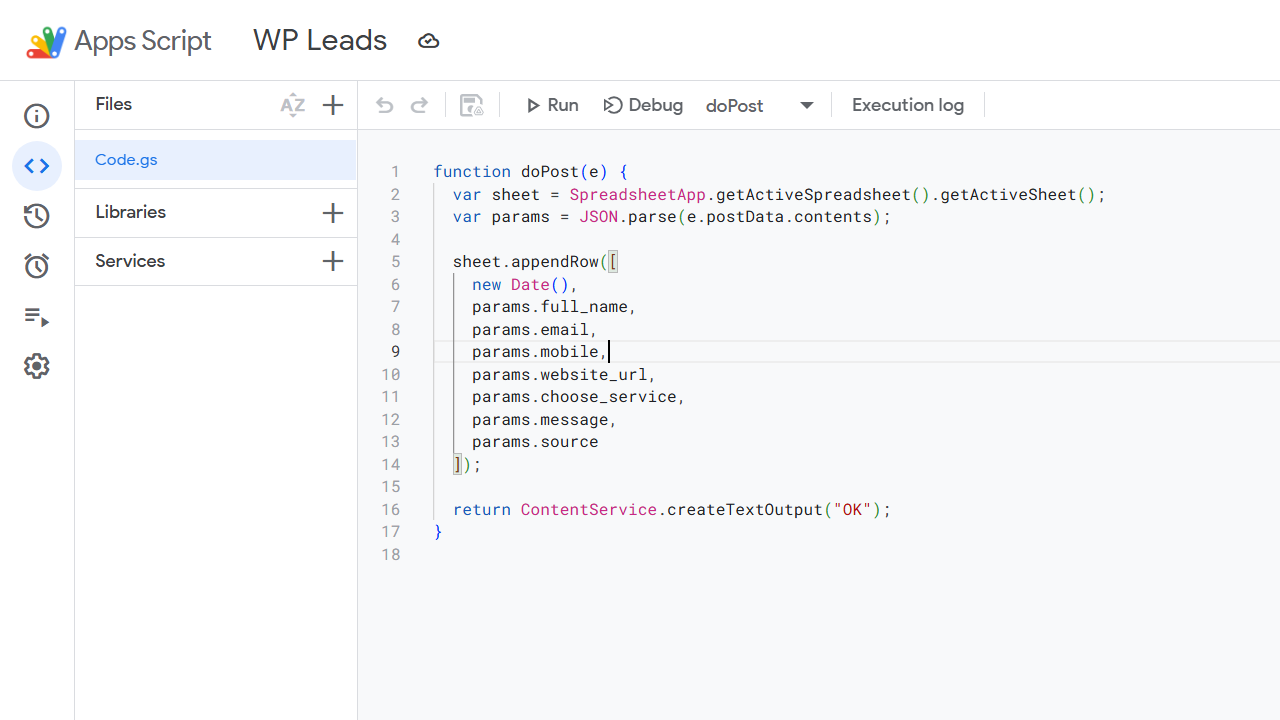
function doPost(e) {
  var sheet = SpreadsheetApp.getActiveSpreadsheet().getActiveSheet();
  var params = JSON.parse(e.postData.contents);

  sheet.appendRow([
    new Date(),
    params.full_name,
    params.email,
    params.mobile,
    params.website_url,
    params.choose_service,
    params.message,
    params.source
  ]);

  return ContentService.createTextOutput("OK");
}
Code language: JavaScript (javascript)- Deploy →
Web App - Set: Anyone with the link
- Copy the Web app/Webhook URL
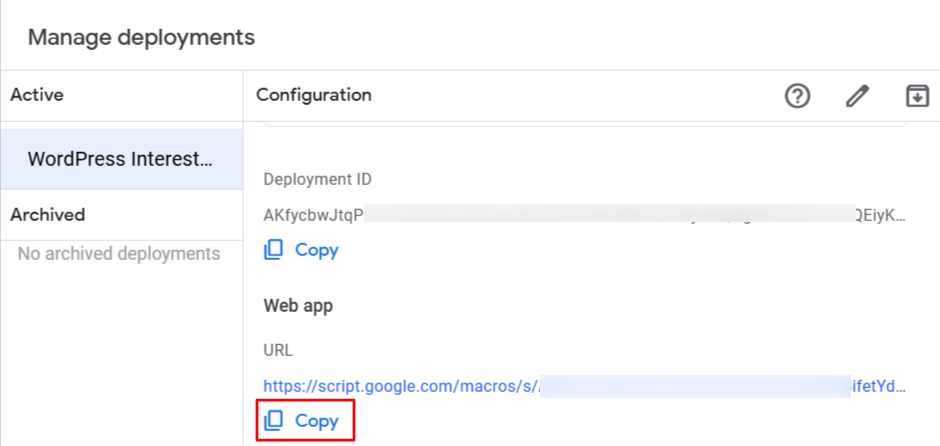
📝 You’ll use this in your PHP code.
🔹 Step 3: Get KIT – formerly ConvertKit API Info
- Log in to KIT – formerly ConvertKit
- Go to Settings → Advanced
- Copy:
- ✅ API Key
- ✅ Form ID
- ✅ Tag ID (if tagging)
🔹 Step 4: Create Your HTML Form (Simple Example)
<form method="post" action="">
  <input type="text" name="full_name" placeholder="Your Name" required>
  <input type="email" name="email" placeholder="Your Email" required>
  <input type="text" name="mobile" placeholder="Mobile Number">
  <select name="choose_service">
    <option value="wordpress_dev">WordPress Development</option>
    <option value="bug_fix">Bug Fix</option>
  </select>
  <textarea name="message" placeholder="Your Message"></textarea>
  <button type="submit">Send</button>
</form>Code language: HTML, XML (xml)
🔹 Step 5: Handle Submission in PHP (Example)
Place this in your functions.php or custom plugin:
add_action('init', function() {
  if ($_SERVER['REQUEST_METHOD'] === 'POST' && isset($_POST['email'])) {

    $data = [
      'full_name'      => sanitize_text_field($_POST['full_name']),
      'email'          => sanitize_email($_POST['email']),
      'mobile'         => sanitize_text_field($_POST['mobile']),
      'choose_service' => sanitize_text_field($_POST['choose_service']),
      'message'        => sanitize_textarea_field($_POST['message']),
      'source'         => 'bloggingstep.com'
    ];

    // ✅ Send to Google Sheet (JSON)
    wp_remote_post('https://script.google.com/macros/s/<strong>XYZ</strong>/exec', [
      'body' => json_encode($data),
      'headers' => ['Content-Type' => 'application/json'],
      'method' => 'POST',
      'data_format' => 'body',
    ]);

    // ✅ Send to ConvertKit (V3 API)
    wp_remote_post('https://api.convertkit.com/v3/forms/<strong>123456</strong>/subscribe', [
      'body' => [
        'api_key' => '<strong>your_api_key</strong>',
        'email'   => $data['email'],
        'first_name' => $data['full_name'],
        'tags' => ['Lead - WordPress Form']
      ]
    ]);
  }
});Code language: PHP (php)
✅ Replace:
XYZ→ your Google Apps Script ID123456→ your ConvertKit Form IDyour_api_key→ your ConvertKit API key
🤔 Common Use Cases
- Freelancers capturing leads
- Developers building custom themes
- Agencies handling client forms
- Bloggers creating lead magnets
- eCommerce sites with service inquiries
❓ Top 10 FAQs
-
Can I do this without using any plugin?
-
Can I track where each lead came from?
-
Is this method secure?
-
Can I add tags dynamically in ConvertKit?
-
What if I want to use WPForms or Contact Form 7?
-
Does this work on shared hosting?
-
Can I connect more services (MailerLite, Brevo)?
-
Will the user see any confirmation?
-
How do I test if it’s working?
-
Will this slow down my site?
Want this done professionally for your website?
I offer custom lead capture form integrations with Google Sheets + ConvertKit + MailerLite
✅ Optimized for speed, tracking, and GDPR
👉 Hire Me at LalitDudeja.com
Or just reply via my contact form — happy to help 🚀
Disclaimer:
Always test any code changes or custom form automation on a staging or localhost environment first. Avoid making direct edits on your live website without proper testing, as incorrect implementations can affect your site’s functionality or lead to data issues. BloggingStep.com and the author take no responsibility for any issues caused by misuse of this guide. Proceed with caution and always keep backups.
🏁 Conclusion
This simple yet powerful method allows you to bypass plugin limitations and build your own fast, custom lead capture system.
You own the data.
You control the process.
And your website stays lightning-fast 💥
Stay tuned — I’m publishing detailed posts for Contact Form 7, WPForms, Elementor, and others next.
All using this same efficient method 💡
📩 Subscribe to BloggingStep and grab your free checklist today!