
Git is a powerful tool for version control, and GitHub provides a platform to host and collaborate on projects. Whether you’re working solo or as part of a team, understanding how to use Git is essential for maintaining code consistency, tracking changes, and collaborating effectively.
In this guide, I’ll walk through the basic steps of version control using Git and GitHub and provide you with a cheat sheet to make the process more manageable.
Table of Contents
What is Version Control?
Version control is a system that allows you to manage changes to your code over time. Git is the most widely used version control system (VCS), and GitHub is a platform that hosts Git repositories, making it easier to share and collaborate on projects.
By using Git, you can track changes, revert to previous versions of your code, and collaborate with others in an organized manner. Here’s a quick overview of why version control is crucial:
- Track Changes: See who made which changes and why.
- Backup Your Code: Safely store multiple versions of your project.
- Collaborate: Work with teams and handle merging and branching with ease.
The Basics of Git Workflow
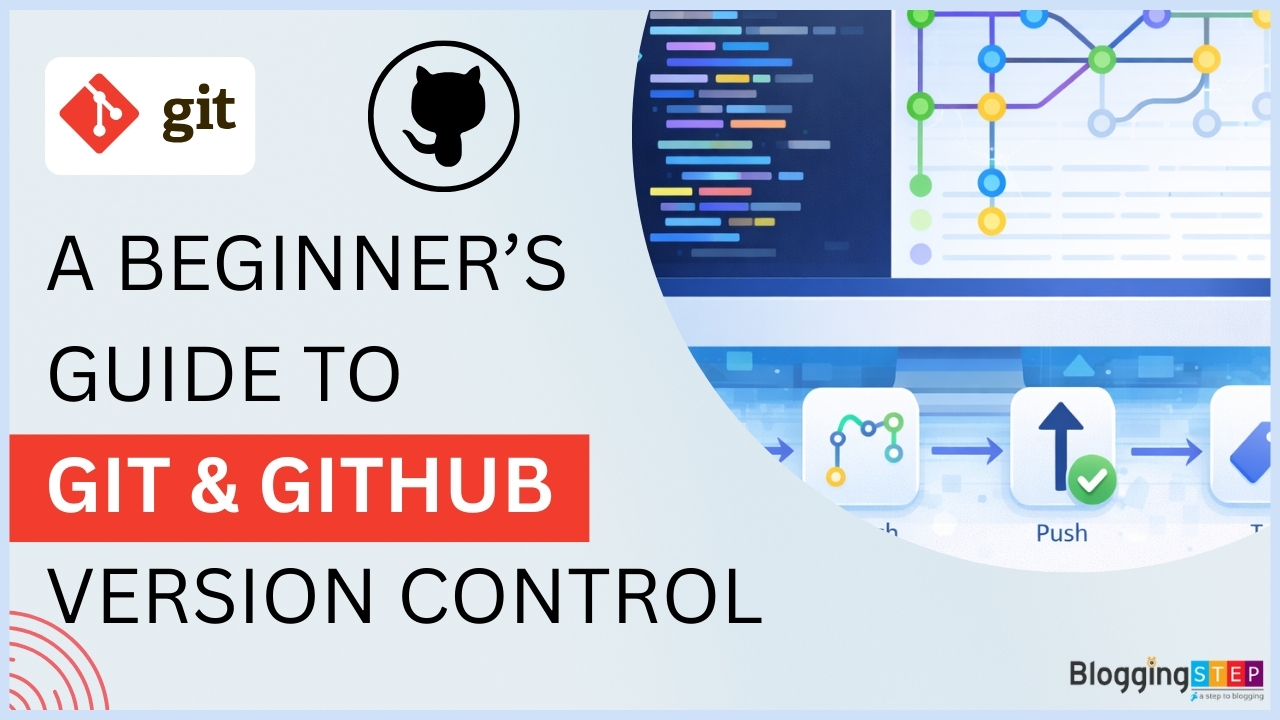
Below is a simplified workflow of using Git in your projects:
- Initialize a Git Repository: This is where Git will start tracking your files.
- Track Changes: Add files to the staging area.
- Commit Changes: Save the changes in your version history.
- Push to GitHub: Upload your code to a remote GitHub repository.
- Create Tags: Label specific commits as releases (e.g., version 1.0).
- Branch and Merge: Work on features in isolation and then merge them back into the main project.
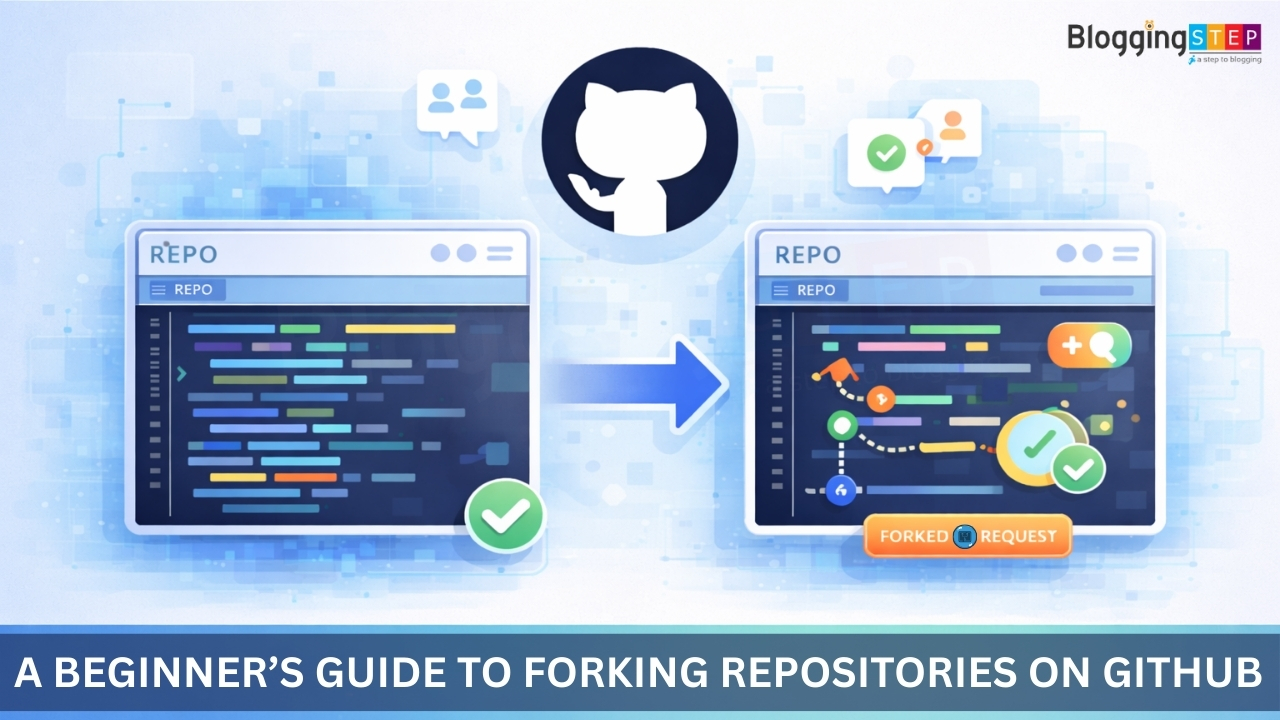
If you’re new to GitHub and want to learn how to collaborate on open-source projects, forking repositories is a crucial step. Learn how to fork repositories and contribute by reading my Beginner’s Guide to Forking Repositories on GitHub.
Git Command Cheat Sheet
Here’s a cheat sheet of the most commonly used Git commands that will help you keep your projects under control. Keep this handy as you work on your version-controlled projects.
Basic Commands
# Initialize a new Git repository
git init

# Check the status of your repository (which files are modified, untracked, etc.)
git status

# Add all changes (files) to the staging area
git add .

# Commit your changes to the repository with a message
git commit -m "Your commit message"

# View the commit history
git log

# See detailed changes made in the repository
git diff
Code language: PHP (php)
Working with Branches
# Create a new branch and switch to it
git checkout -b new-branch

# Switch to an existing branch
git checkout branch-name

# List all branches in the repository
git branch

# Merge changes from another branch into your current branch
git merge branch-name
Code language: PHP (php)
Tagging Versions
# Create a tag for a specific commit (usually a version release)
git tag -a v1.0 -m "Release version 1.0"

# Push a specific tag to GitHub
git push origin v1.0
Code language: PHP (php)
Pushing and Pulling from GitHub
# Push changes to the remote repository (GitHub)
git push origin master  # or main depending on your branch name

# Pull the latest changes from GitHub to your local repository
git pull origin master
Code language: PHP (php)
A Secure WordPress Site Means…
# Clone a remote repository to your local machine
git clone https://github.com/username/repository-name.git

# Fetch the latest changes from GitHub without merging
git fetch origin

# Check out a remote branch (without switching to it)
git checkout --track origin/branch-name
Code language: PHP (php)
How to Use Git in a WordPress Plugin Project?
Let’s walk through a practical example of using Git for version control with a simple WordPress plugin. By the end of this, you’ll be able to manage plugin versions, handle updates, and collaborate with others.
Step 1: Set Up Your Plugin and Git Repository
- Create a folder for your WordPress plugin (e.g.,
hello-world-plugin). - Open a terminal in that folder and initialize Git:
git init
Step 2: Create Your Plugin File
- Create a file named
hello-world-plugin.phpand add the following simple code:
<?php
/*
Plugin Name: Hello World Plugin
Description: A simple plugin that displays "Hello, World!" on your WordPress site.
Version: 1.0
Author: Your Name
*/

function hello_world_display() {
    echo '<h1>Hello, World!</h1>';
}
add_action('wp_footer', 'hello_world_display');
Code language: HTML, XML (xml)
Step 3: Commit the Plugin Code to Git
- Track and commit your files:
git add .
git commit -m "Initial commit - Version 1.0"
Code language: JavaScript (javascript)
Step 4: Push to GitHub
- Create a new repository on GitHub (e.g.,
hello-world-plugin). - Link your local repository to GitHub and push your files:
git remote add origin https://github.com/your-username/hello-world-plugin.git
git push -u origin master
Code language: JavaScript (javascript)
Using GitHub for Versioning
Versioning is crucial when releasing updates or bug fixes for your plugin. Here’s how to tag and track versions.
Step 5: Tagging New Versions
Each time you release a new version, you can tag it for easy reference. For example, after adding new features or fixing bugs in your plugin:
git commit -am "Added new feature"
git tag -a v1.1 -m "Release version 1.1"
git push origin v1.1
Code language: CSS (css)
You can also maintain a CHANGELOG.md to document changes between versions, which helps both you and collaborators stay updated with what’s changed.
Step 6: Working on New Features with Branches
To work on new features without affecting the main project, you can create a new branch. Once you finish your feature, merge it back into the master or main branch.
git checkout -b feature-branch
git commit -am "Implemented new feature"
git checkout master
git merge feature-branch
Code language: JavaScript (javascript)
Bonus Tip: Keep Practicing
The more you use Git, the more comfortable you’ll become with it. So, don’t be afraid to experiment with branches, tags, commits, and merges. Over time, version control will become second nature!
Resources to Learn More:
FAQs About Git & GitHub
-
What is Git and how does it work?
-
What is GitHub and how does it relate to Git?
-
Why should I use Git for version control?
-
What is the difference between Git and GitHub?
-
How do I start using Git on my computer?
-
What are commits and how do I make them?
-
What is the purpose of branches in Git?
-
How do I push my changes to GitHub?
-
How do I collaborate with others using Git and GitHub?
-
How do I resolve conflicts in Git?
-
What is a pull request, and how do I use it?
Conclusion
Git and GitHub are essential tools for managing projects, collaborating with others, and tracking changes in your code. By using the commands outlined in this cheat sheet and following the workflow described, you can keep your projects organized and ensure you’re always working with the most up-to-date code.
As you continue working on new projects and refining your workflow, these Git commands will become second nature. GitHub is a fantastic platform for version control, but it also enables collaboration -allowing multiple people to work on the same codebase simultaneously.
Want to Get More Git Tips?
Stay tuned for more tutorials and tips on using Git, GitHub, and WordPress development. Don’t forget to subscribe to our newsletter for updates and articles!
Get in touch with me at LalitDudeja.com for personalized WordPress security services and solutions that protect what matters most to you.
Need support for your WordPress website?
Explore my WordPress Support & Maintenance Services and let me handle the technical details while you focus on growing your business.
If you’re just starting your WordPress journey, check out my full collection of beginner-friendly tutorials that make learning easy and fun.