

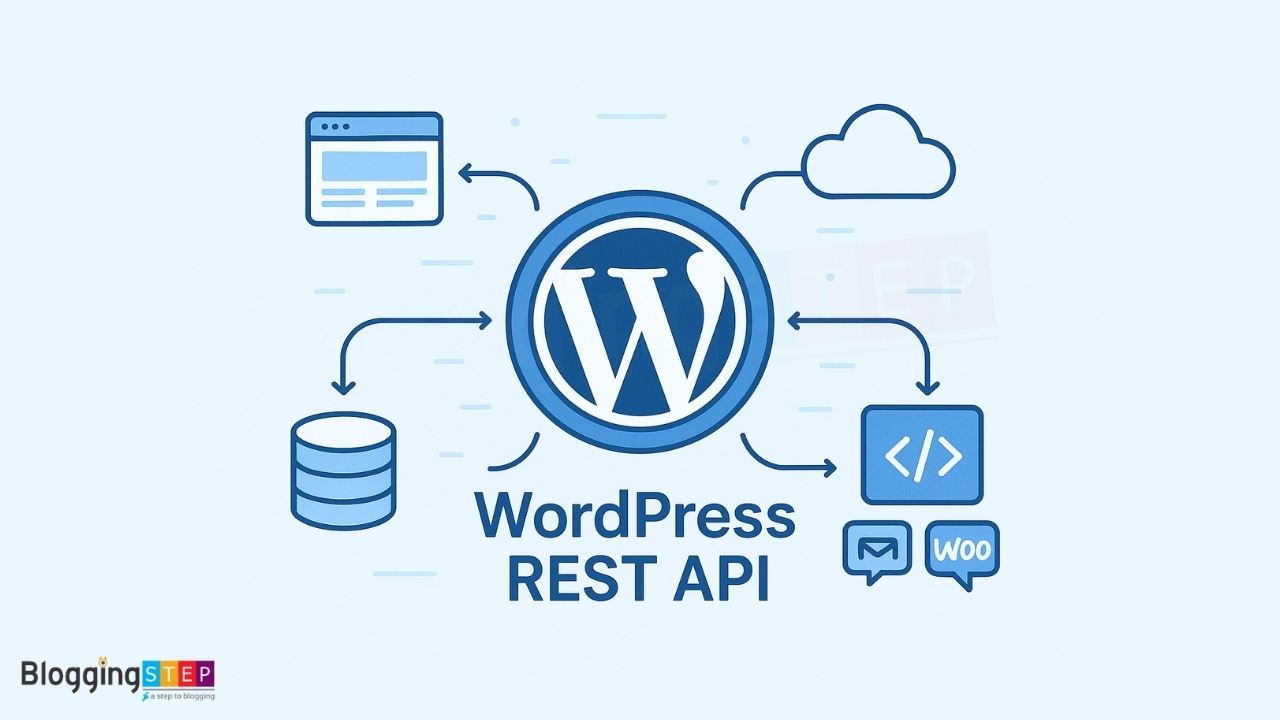
Is your WordPress website struggling with REST API related challenges? Whether you’re dealing with problems related to API endpoints, authentication, or simply want to learn how to take full advantage of the WordPress REST API, you’ve come to the right place. In this tutorial, I’ll guide you through common issues and offer practical solutions to unlock the true potential of your WordPress site.
From troubleshooting the common Contact Form 7 API issues with REST API to learning how to disable the WordPress REST API without using plugins, this guide will help you resolve these challenges efficiently.
Keep reading to learn how to troubleshoot and leverage the WordPress REST API effectively!
Table of Contents
What is WordPress REST API?
The WordPress REST API allows developers to interact with WordPress from external applications. It enables the creation, retrieval, update, and deletion (CRUD) of WordPress data using HTTP requests. This means you can communicate with your WordPress site from outside the WordPress environment, making it a powerful tool for building apps, themes, and plugins.
The REST API was introduced in WordPress 4.4, making it possible to retrieve and manage WordPress content using simple HTTP requests. The key advantage is that it allows WordPress to communicate with third-party services or even other websites.
How Does the WordPress REST API Work?
The WordPress REST API interacts with your WordPress website using HTTP methods (GET, POST, PUT, DELETE) and JSON to structure the data. When you make a request to the API, it sends back a response in the JSON format.
Here’s an example of how to use the REST API to fetch posts:
GET https://yourwebsite.com/wp-json/wp/v2/postsCode language: JavaScript (javascript)This request retrieves the latest posts from your WordPress site. The response will look like this:
[
  {
    "id": 1,
    "date": "2025-11-03T12:30:00",
    "slug": "hello-world",
    "title": "Hello World",
    "content": "This is your first post!",
    ...
  }
]Code language: JavaScript (javascript)
Common Use Cases for the REST API:
- Mobile Applications: Mobile apps can use the REST API to fetch posts, pages, and other content from a WordPress site.
- Custom Themes: Use the API to fetch content dynamically in your custom WordPress themes.
- Third-Party Integrations: Integrate WordPress with other platforms (CRM, email marketing, etc.) using the REST API.
- Plugins: Developers can use the REST API to create plugins that communicate with WordPress content programmatically.
Why Disable the WordPress REST API?
Before diving into the code snippets that you can easily copy and paste into your child theme’s functions.php, let’s first understand why you might want to disable or restrict access to the WordPress REST API in the first place.
At its core, the WordPress REST API is designed to make your site more interactive by allowing external applications, services, or other websites to interact with your WordPress data. However, publicly exposing your site’s data via the REST API can sometimes be a security risk, particularly if sensitive information is available to unauthorized users.
For example, did you know that adding /wp-json/wp/v2/users to the end of your website’s URL could potentially expose a list of all the registered users on your site? While this endpoint won’t display sensitive information like email addresses, it still provides useful data that could be leveraged for malicious purposes, such as identifying potential targets for spam or brute-force attacks.
By disabling or limiting access to the REST API, you can keep sensitive site data hidden from public view, reducing the potential for data leaks or unwanted access.
How to Disable the REST API in WordPress?
Sometimes, you might want to disable the REST API for specific purposes. This is especially useful if you’re trying to prevent unauthorized access to sensitive data or limit access to certain endpoints for users who aren’t logged in.
To disable the REST API in WordPress, you can add the following code to your functions.php file or a custom plugin.
Disabling the REST API for Non-Logged-In Users (Without Plugin):
add_filter('rest_authentication_errors', function($error) {
    if (!is_user_logged_in()) {
        return new WP_Error('rest_forbidden', 'REST API access is restricted to logged-in users only.', ['status' => 403]);
    }
    return $error;
});Code language: PHP (php)
This code checks if the user is logged in before allowing access to the REST API. If the user is not logged in, a 403 Forbidden error is returned.
Disabling Specific Endpoints:
You may want to disable certain REST API endpoints. Here’s how you can do that:
add_filter('rest_endpoints', function($endpoints) {
    // Disable specific REST API endpoint (e.g., posts)
    if (isset($endpoints['/wp/v2/posts'])) {
        unset($endpoints['/wp/v2/users']);
    }
    return $endpoints;
});Code language: PHP (php)
This code will remove the endpoint that allows access to WordPress posts, effectively disabling it.
What Happens If You Disable the REST API?
Disabling the REST API can improve the security of your WordPress website by restricting access to certain information. However, it’s important to understand that this action can have a wide-ranging impact on the functionality of your site, particularly for features that rely on asynchronous data loading or external integrations. Here’s a breakdown of what might happen if you disable the REST API:
1. Gutenberg (Block Editor) Issues:
The block editor relies heavily on the REST API to function. If it’s disabled, the editor won’t load or save posts properly, and you may experience issues with previewing content or autosaving drafts.
2. Admin Dashboard Features:
Some parts of the WordPress admin dashboard, like real-time content updates, dynamic widgets, and certain post management functions, depend on the REST API. Disabling it may break these features, causing delays or preventing content from loading asynchronously.
3. Plugin Compatibility:
- Contact Form 7: Form submissions may not work, and the feedback loop may fail.
- WooCommerce: Features like product syncing, order processing, and checkout may be broken.
- Other Plugins: Plugins relying on AJAX or external services (like email marketing tools) may stop functioning correctly.
4. Mobile Apps & External Integrations:
WordPress mobile apps, as well as any third-party integrations, won’t be able to interact with your site if the REST API is disabled. This includes syncing posts, managing comments, or using integrations like social media schedulers.
5. Site Speed & Front-End Functionality:
Some dynamic content features like infinite scroll, AJAX-based content loading, or personalized widgets may stop working, leading to a less interactive user experience.
6. Search Engine Crawling & Indexing:
Search engines may have difficulty crawling and indexing your site, particularly if your site relies on dynamically loaded content that depends on the REST API.
How to Fix Contact Form 7 when disabling the WordPress REST API:
One common issue when disabling the REST API is that plugins like Contact Form 7 rely on the API for functionality. By default, Contact Form 7 uses the REST API to submit form data, but when you disable the API for security reasons, you could break the form submissions.
To resolve this issue, you can specifically whitelist Contact Form 7 endpoints while disabling other REST API features:
add_filter('rest_authentication_errors', function($error) {

    // if there is already an error, just return it
    if( is_wp_error( $errors ) ) {
        return $errors;
    }

    if (!is_user_logged_in()) {

        $active_plugins = get_option('active_plugins');
		// Check if the "Contact Form 7" plugin is active
		// Check if the "WPCF7_ContactForm" class exists
		if( in_array('contact-form-7/wp-contact-form-7.php', $active_plugins) && class_exists( 'WPCF7_ContactForm' ) ) {

            $allowed_endpoints = [];

            $forms = WPCF7_ContactForm::find(); // Get all Contact Form 7 forms

            // Loop through all forms and add their endpoints to an array
            foreach ($forms as $form) {
                $form_id = $form->id();
                $allowed_endpoints[] = '/wp-json/contact-form-7/v1/contact-forms/' . $form_id . '/refill';
                $allowed_endpoints[] = '/wp-json/contact-form-7/v1/contact-forms/' . $form_id . '/feedback';
                $allowed_endpoints[] = '/wp-json/contact-form-7/v1/contact-forms/' . $form_id . '/feedback/schema';
            }

            $current_request = wp_parse_url($_SERVER['REQUEST_URI'], PHP_URL_PATH);
            foreach ($allowed_endpoints as $endpoint) {
                if (strpos($current_request, $endpoint) !== false) {
                    return $error;  // Allow the request for Contact Form 7
                }
            }

            return new WP_Error('rest_forbidden', 'REST API access is restricted to logged-in users only.', ['status' => 403]);

        }

    }
    return $error;
});Code language: PHP (php)
Final Thoughts on Disabling the WordPress REST API
While disabling the REST API in WordPress can enhance security, it’s essential to understand the trade-offs. You might lose some essential functionality, especially with plugins like Contact Form 7 and WooCommerce.
If you’re concerned about security but still want to enable REST API for specific functionalities (like Contact Form 7), it’s a good idea to use selective access or implement additional layers of security, such as authentication and authorization.
By understanding and configuring the WordPress REST API properly, you can strike a balance between functionality and security.
FAQs – WordPress REST API
-
What is the WordPress REST API?
-
Why should I use the WordPress REST API?
-
How do I enable the WordPress REST API on my site?
-
Can I restrict access to the WordPress REST API?
-
How do I use the WordPress REST API to fetch data?
-
What happens if I disable the REST API on my WordPress site?
-
How can I disable the REST API without using plugins?
-
Can I create custom REST API endpoints in WordPress?
Disclaimer
Make sure you test any WordPress REST API modifications on a staging or demo website before applying it to your live site. Disabling the REST API could affect the functionality of various features, including form submissions and plugin integrations (such as Contact Form 7). Always ensure that your site operates correctly in a staging environment first to avoid disrupting the user experience or breaking critical functionalities.
Conclusion
The WordPress REST API is a powerful tool for developers and users alike, enabling seamless interaction with your site’s data. However, in certain situations, you may want to disable it for security or performance reasons. If you disable the API, be aware of the implications it may have on plugins and functionality. Always ensure you have a strategy to handle these issues, especially for popular plugins like Contact Form 7.
With the steps outlined in this article, you should be able to control REST API access and troubleshoot any issues that arise, keeping your WordPress site secure and functional.
Need support for your WordPress website?
Explore my WordPress Support & Maintenance Services and let me handle the technical details while you focus on growing your business.
If you’re just starting your WordPress journey, check out my full collection of beginner-friendly tutorials that make learning easy and fun.